Lottie Animations
Sync Lottie Player animations with your Motion.page timeline.
Lottie ties the playback progress of a Lottie Player web component to your Motion.page timeline. Instead of running independently, the Lottie animation scrubs forward (or backward) in lock-step with however your timeline progresses — whether that is a scroll scrub, a page-load play-through, or an interaction trigger.
Location
Left Panel → Animation tab → Visual Properties → Lottie
Lottie is a functional property — it is direction-agnostic. The same Lottie configuration applies whether the From, To, or Set tab is active. Enabling it on any tab automatically enables it on all three.
Enable Lottie
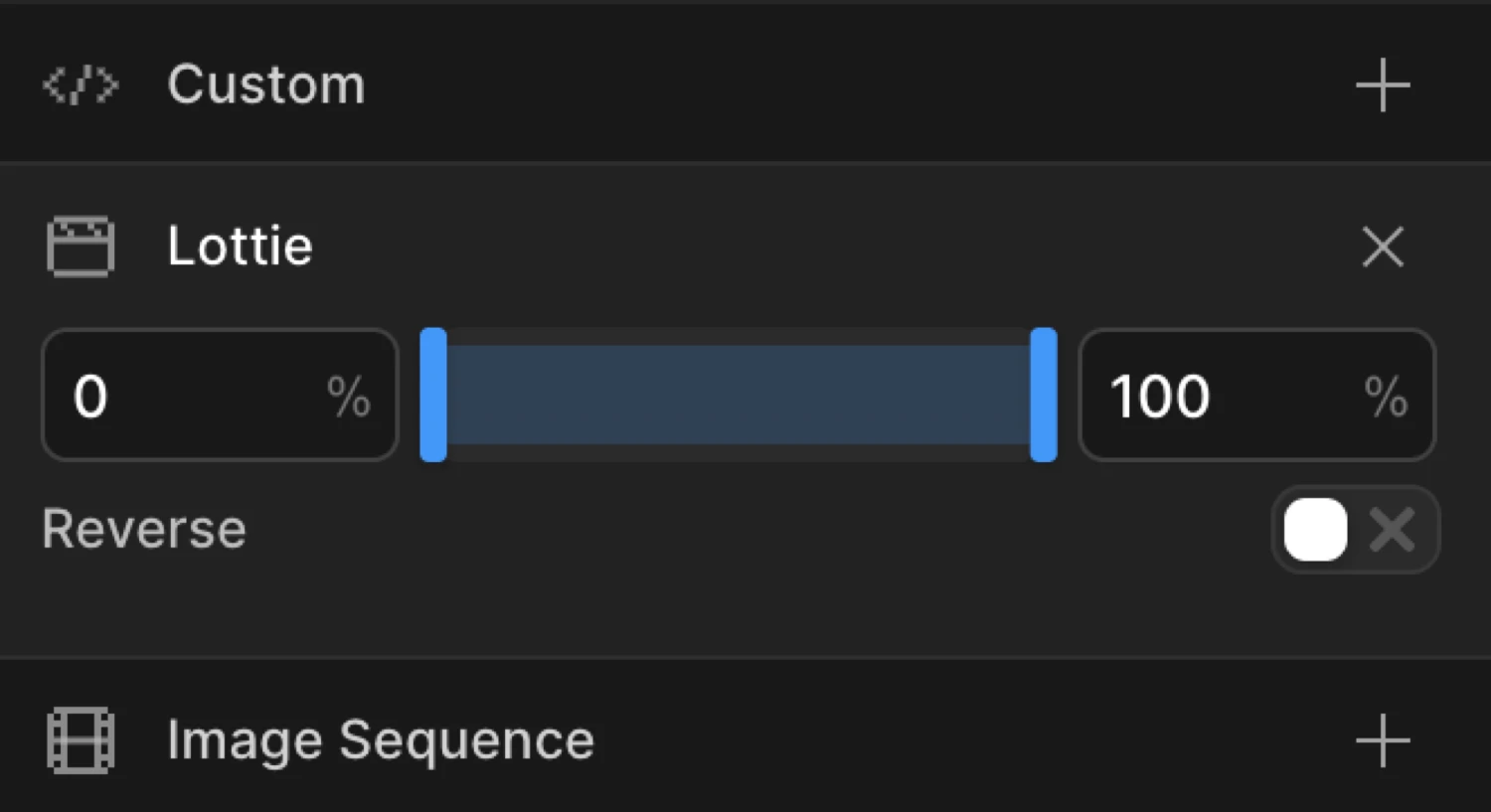
Click the toggle next to Lottie to enable it. The row expands to reveal a playback range slider and the reverse toggle.
Controls
| Control | Type | Default | Description |
|---|---|---|---|
| Start % | Number input | 0 |
Start position of the playback range as a percentage (0–100). |
| End % | Number input | 100 |
End position of the playback range as a percentage (0–100). |
| Range slider | Slider | Full range | Visual slider to drag the start and end points of the Lottie playback range. |
| Reverse | Toggle | Off | Play the Lottie sequence in reverse order of playback. |
Partial playback
By default Motion.page drives the Lottie from its first frame to its last frame across the full timeline duration. Enter a Start and End percentage to animate only a slice of the Lottie — for example, 30%–60%. Anything outside that range stays frozen at the boundary frame.
Keep the range at 0%–100% to animate the full Lottie. You can also move only one boundary — for example, set End to
60%to stop playback three-fifths through without clipping the start.
Reverse
Enable Reverse to invert playback direction. As the timeline progresses forward, the Lottie steps backward through its frames. Combine with partial playback to reverse only a segment of the animation.
Prerequisites
The Lottie Player web component must be loaded on the page before Motion.page attempts to control it.
Add the Lottie Player script to your page’s <head> or before the closing </body> tag:
<script src="https://unpkg.com/@lottiefiles/lottie-player@latest/dist/lottie-player.js"></script>Then place a <lottie-player> element somewhere in your page markup:
<lottie-player
  id="my-lottie"
  src="https://assets.lottiefiles.com/packages/lf20_example.json"
  background="transparent"
  speed="1"
  style="width: 300px; height: 300px;"
></lottie-player>
Select the Lottie element in Motion.page — for example #my-lottie or .hero-lottie. Do not add autoplay or loop; Motion.page takes control of frame playback.
WordPress users: Add the script via a custom HTML block or your theme’s
functions.php. Desktop users: paste it into the Custom Code panel in the Settings tab.
How it works
Motion.page drives the Lottie by setting the player’s seek position as the timeline progresses. The Lottie never plays on its own clock — it is entirely slaved to the timeline’s current progress.
- Scroll Trigger + Scrub — the Lottie frames advance and retreat as the user scrolls. The animation literally scrubs with the page position.
- Page Load trigger — the Lottie plays from its start frame to its end frame as the timeline plays through its duration.
- Interactions (Click / Hover) — the Lottie advances on enter and optionally reverses on leave, depending on your toggle actions.
Partial playback works the same way across all triggers — Motion.page maps the timeline progress 0 → 1 onto the configured frame range rather than the full Lottie duration.
Common patterns
Lottie on scroll scrub
The most common use case. A Lottie illustration plays frame by frame as the user scrolls down the page.
- Add a
<lottie-player>element with your animation JSON. - Select the element in Motion.page and open Lottie in the Visual Properties list.
- Enter the element’s selector (e.g.
#hero-lottie). - Set the trigger to Scroll Trigger and enable Scrub.
- Adjust Start / End scroll positions to control when the animation begins and ends.
The Lottie will scrub forward as the user scrolls into the trigger zone, and backward if they scroll back up.
import { Motion } from "@motion.page/sdk";

const player = document.querySelector("#hero-lottie");

Motion("hero-lottie", player, {
  duration: 1,
  ease: "none",
  onUpdate: (progress) => {
    if (!player?._lottie) return;
    const lastFrame = player._lottie.totalFrames - 1;
    player._lottie.goToAndStop(Math.round(progress * lastFrame), true);
  },
}).onScroll({
  target: "#hero-lottie",
  scrub: true,
  start: "top center",
  end: "bottom center",
});Partial playback — animate only 30%–60%
A Lottie has three distinct animation phases. Map a single Motion.page timeline to only its middle range.
- Enable Lottie and enter the selector.
- Set Start to
30%and End to60%. - Attach any trigger — scroll scrub, page load, or interaction.
Only the 30%–60% slice will animate. Everything before and after that slice remains frozen at its boundary position.
const partialPlayer = document.querySelector(".lottie-icon");

Motion("lottie-partial", partialPlayer, {
  duration: 1,
  ease: "none",
  onUpdate: (progress) => {
    if (!partialPlayer?._lottie) return;
    const lastFrame = partialPlayer._lottie.totalFrames - 1;
    const normalized = 0.3 + (0.6 - 0.3) * progress;
    partialPlayer._lottie.goToAndStop(Math.round(normalized * lastFrame), true);
  },
}).onScroll({
  target: ".lottie-icon",
  scrub: true,
  start: "top 80%",
  end: "bottom 20%",
});
Generated SDK Bridge
Lottie is Builder metadata, not a root-level field in the core SDK’s AnimationConfig. The SDK generator turns the selected range and Reverse toggle into an animation-level onUpdate callback that calls element._lottie.goToAndStop(...).
You do not need to maintain that callback when using the Builder. For the exact handwritten pattern and additional triggers, see Lottie in the SDK.
Related
- Scroll Trigger — Drive Lottie playback with scroll position using Scrub
- From, To & Set — How functional properties apply across animation mode tabs
- Image Sequence — Similar frame-by-frame scrubbing using a sequence of images instead of Lottie