Presentation Mode
Configure full-page section scrolling with smooth transitions, direction control, and visual effects.
Presentation Mode turns matched page sections into a stacked slide deck. Wheel, touch, and pointer gestures advance the active section through Builder-generated Motion timelines.
Location
Left Panel → Trigger tab → trigger type dropdown → Observer → Presentation Mode toggle
Enable the Observer trigger, turn on Trigger each iteration individually, then toggle Presentation Mode to reveal its controls.
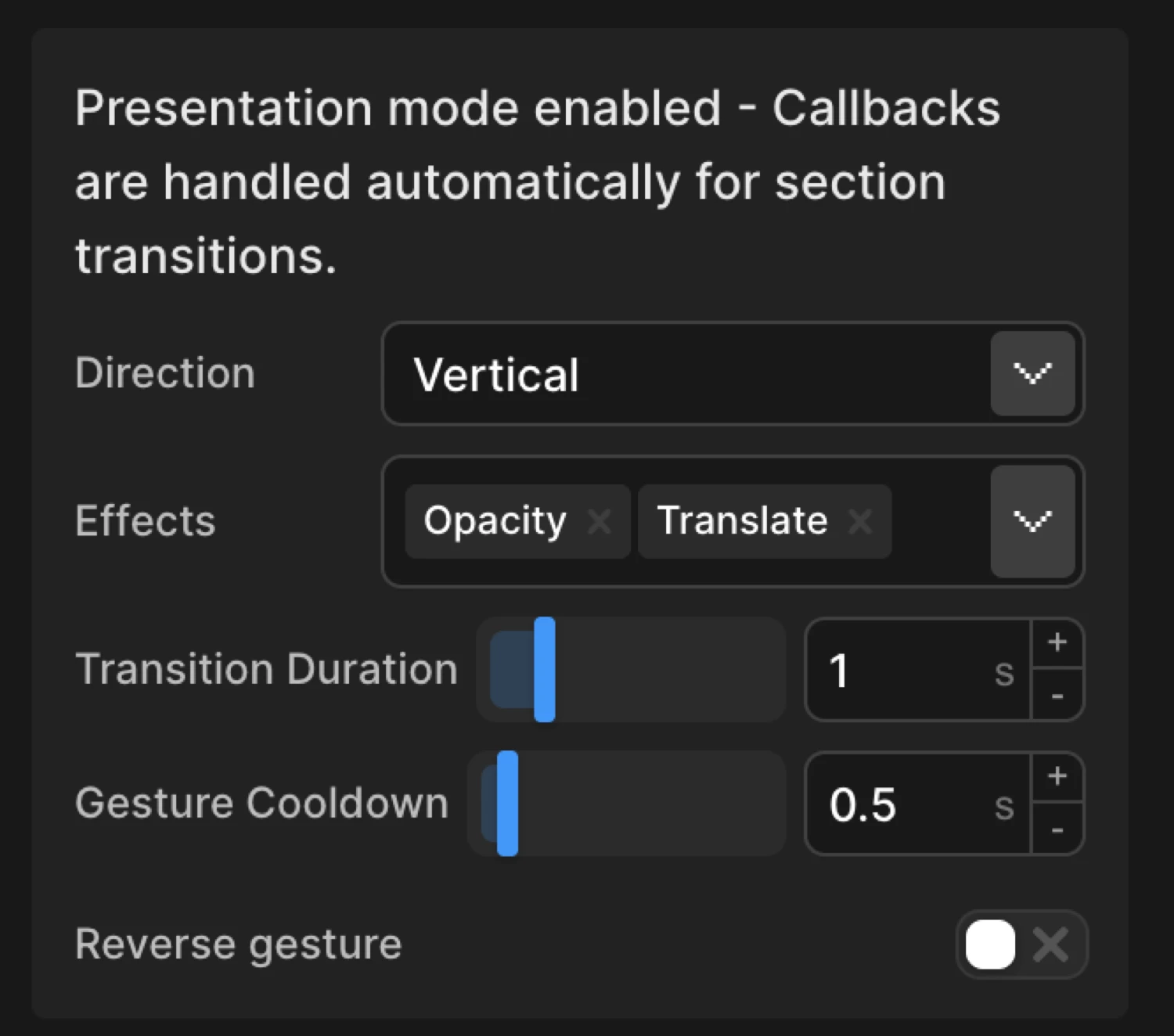
How it works
Each element matched by the Observer target becomes a full-screen section. The Builder stacks those sections in one containing block, generates incoming and outgoing Motion timelines, and maps gestures to the next or previous absolute section index.
Enable full-page section scrolling like a presentation. Each target becomes a full-screen section with smooth transitions between them. Callbacks are handled automatically.
The normal Observer Callbacks control is hidden in this mode. The generator derives the necessary Down/Up or Right/Left mappings from Direction and Reverse Gesture, so you do not configure callback actions separately.
Settings
| Setting | Default | Description |
|---|---|---|
| Presentation Mode toggle | off | Activates full-screen section snapping. All controls below are hidden when this is off. |
| Infinite Repeat | off | When the last section is reached, loop back to the first (and vice versa). |
| Direction | vertical |
Whether sections transition vertically (up/down) or horizontally (left/right). |
| Duration | 1 s |
How long each incoming and outgoing section transition takes. |
| Cooldown | 0.5 s |
Additional navigation lock after the transition finishes. Prevents repeated triggers on sensitive trackpads. |
| Effects | Opacity + Translate | Visual properties included in the generated transition timelines. |
| Reverse Gesture | off | Swap gesture directions: up/left navigates forward, down/right navigates backward. |
| Use Vertical Wheel | off | Allow vertical mouse wheel to navigate horizontal sections. Useful for desktop users with traditional mice. |
Effects
Choose which visual effects to apply during section transitions. Select both for smooth fade and slide animations.
| Effect | Behaviour |
|---|---|
| Opacity | The outgoing section fades out while the incoming section fades in. |
| Translate | The outgoing section moves off-screen while the incoming section moves in along the selected axis. |
| Opacity + Translate | Both properties animate together. |
Both effects are selected by default. If the selection is cleared, the Builder adapter restores both defaults when it generates code.
Direction
Choose whether sections transition vertically (up/down) or horizontally (left/right).
| Value | Behaviour |
|---|---|
vertical |
Users scroll down to advance and up to go back. Works naturally with all scroll input devices. |
horizontal |
Right gestures advance and left gestures go back. Combine with Use Vertical Wheel for standard mouse-wheel input. |
Use Vertical Wheel
Enable vertical mouse wheel scrolling to navigate horizontal sections. Useful for desktop users with traditional mice.
When Direction is set to horizontal, desktop users without a trackpad cannot naturally swipe left/right with a standard scroll wheel. Enable Use Vertical Wheel to map vertical wheel events to horizontal section navigation so all input devices work consistently.
Reverse Gesture
Use standard gesture directions. When enabled, up/left gestures navigate forward, down/right navigate backward.
Disabled by default: down/right advances to the next section. Enable Reverse Gesture to flip this — up/left advances, down/right goes back. Use this when your layout reads right-to-left or your art direction calls for inverted navigation.
This hand-written preview mirrors Builder output with Direction set to Vertical, Effects set to Opacity and Translate, Infinite Repeat enabled, a 0.6s transition, and a 0.35s cooldown. The Builder generates the section setup and navigation function automatically.
SDK equivalent
Presentation Mode is a Builder-generated orchestration layer on top of the public SDK. It does not map to a presentation option in GestureConfig. Exported Builder code creates the enter/exit timelines, tracks the active section, then uses .onGesture() to call the section-navigation function.
The core pattern looks like this (the preview’s JS tab contains the complete working version):
import { Motion } from "@motion.page/sdk";

const gesture = Motion("slides-gesture");

gesture.onGesture({
  types: ["wheel", "touch", "pointer"],
  events: { Down: "play", Up: "reverse" },
  preventDefault: true,
});

// The generated functions create Motion() enter/exit timelines.
gesture.play = function () {
  gotoSection(currentIndex + 1, 1);
  return gesture;
};
gesture.reverse = function () {
  gotoSection(currentIndex - 1, -1);
  return gesture;
};
The Builder writes the longer gotoSection() implementation for you, including horizontal/vertical translation, opacity settings, cooldown, and optional wrapping. For the generated-code pattern see Presentation Mode.
Common patterns
Vertical storytelling
Set Direction to Vertical, enable both Opacity and Translate, and set Duration to 0.8–1s. Each section becomes a narrative beat that advances on downward gestures.
Horizontal portfolio
Set Direction to horizontal and enable Use Vertical Wheel so desktop users with traditional mice can navigate. Each panel can showcase a project or case study. Use Reverse Gesture if the design reads right-to-left.
Looping product showcase
Enable Infinite Repeat with a short Duration (0.5s) and minimal Cooldown (0.3s) so gestures wrap continuously from the final product slide back to the first.
Related
- Observer Gesture — The parent trigger that Presentation Mode extends
- Scroll Trigger — Standard scroll-based animation without section snapping
- Presentation Mode — SDK pattern — how Builder output composes core Motion timelines and
.onGesture() - Left Panel — Full Left Panel reference including the Trigger tab